
How to Use
Get started with ScamProtect
Set it up in a few minutes, then let it check your messages and calls for you.
- 01
Install and open ScamProtect
Download ScamProtect from Google Play on your Android phone (Android 7.0 or later) and open it. A short introduction shows what the app does.
- Allow the permissions it asks for: SMS, phone and call log, contacts and notifications. Each one is explained on the Download page.
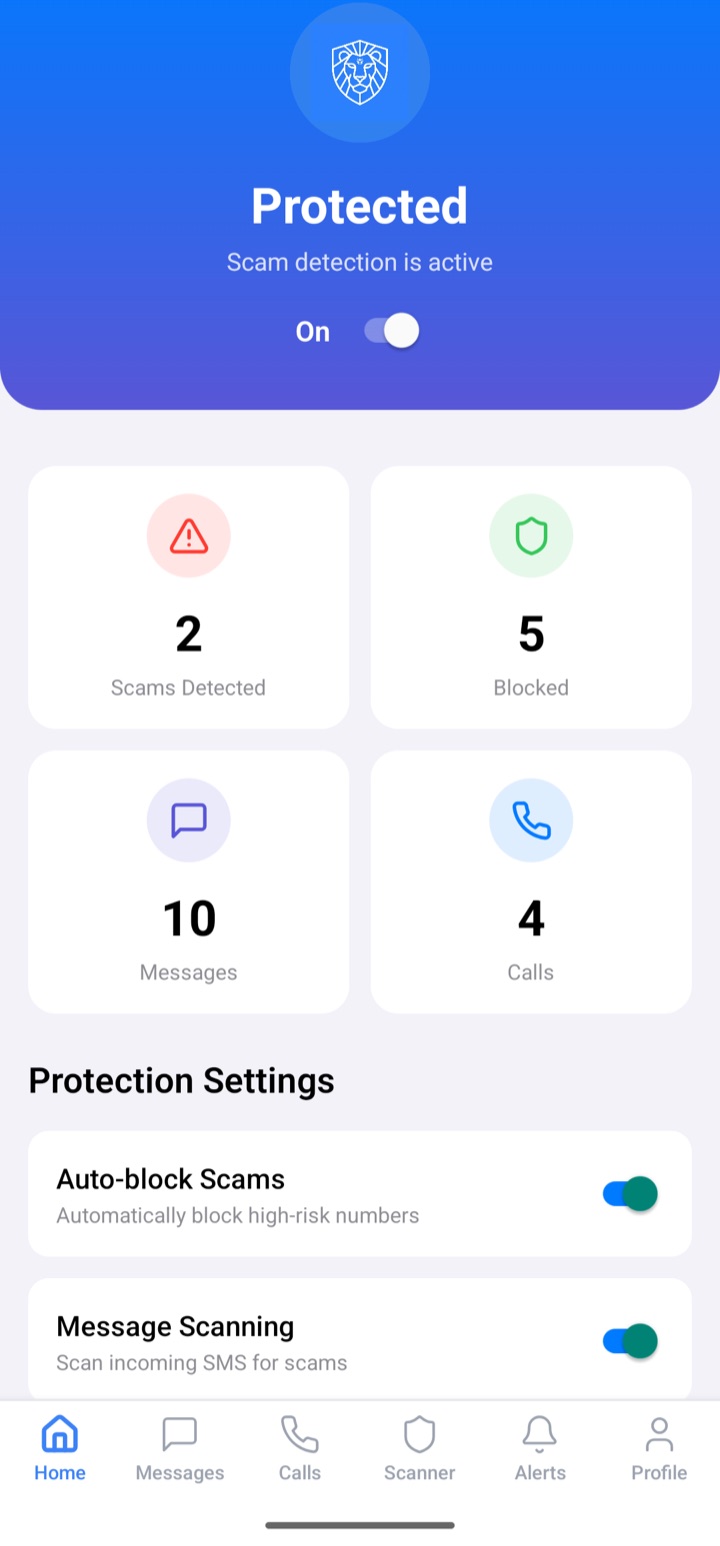
- The home screen then shows Protected, with counts of the scams caught, numbers blocked, and messages and calls checked.
- Protection can be switched on or off from the home screen at any time.
- 02
Choose how ScamProtect protects you
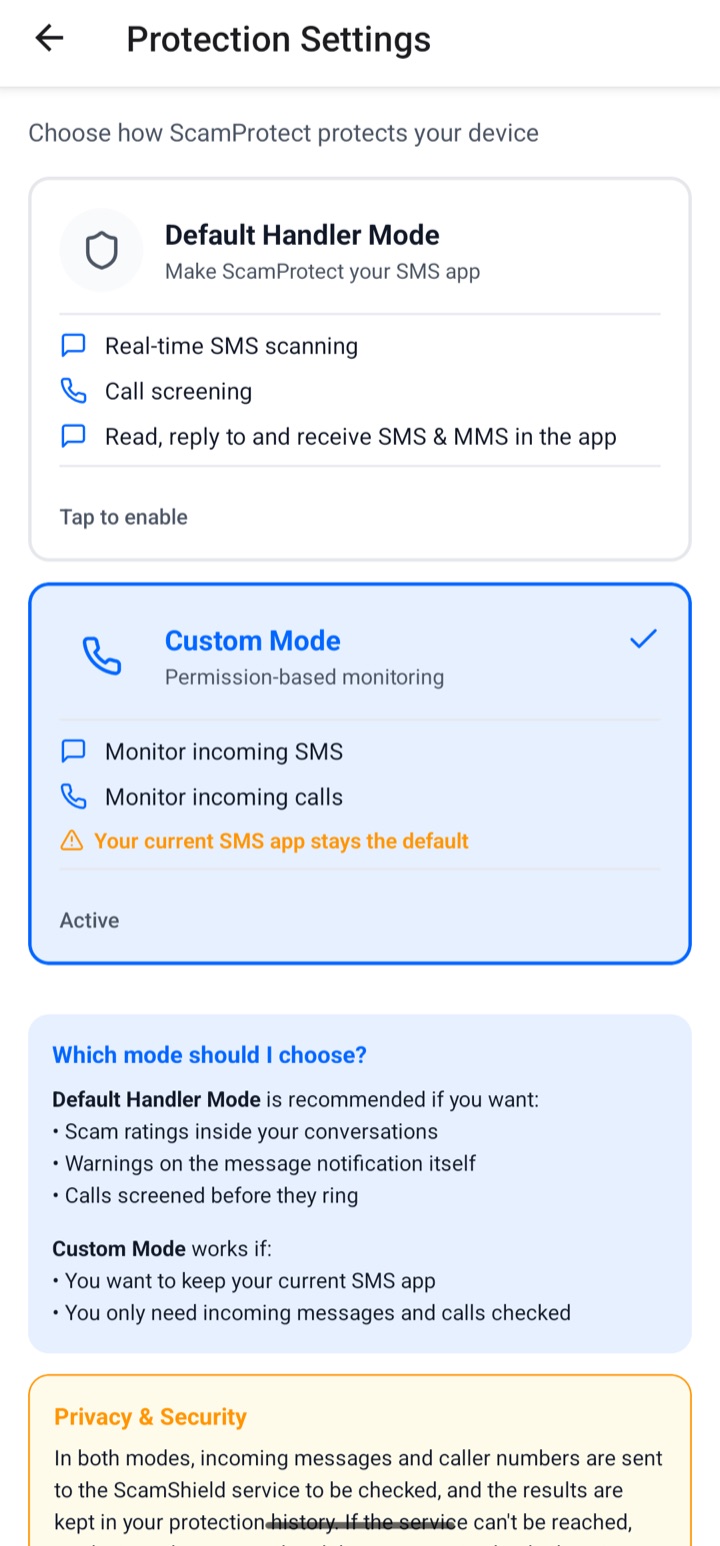
In the Profile tab, tap Protection mode and pick how you want to be protected.
- Default Handler Mode (recommended): ScamProtect becomes your SMS app. You see a rating under every message, a scam's notification becomes a warning, and calls are screened before they ring. You can still read and reply to every message, including picture messages.
- Custom Mode: keep your current SMS app. Incoming messages and calls are still checked, and warnings appear in ScamProtect.
You can switch modes at any time. Android will ask you to confirm before ScamProtect becomes your SMS app.
- 03
Understand the ratings
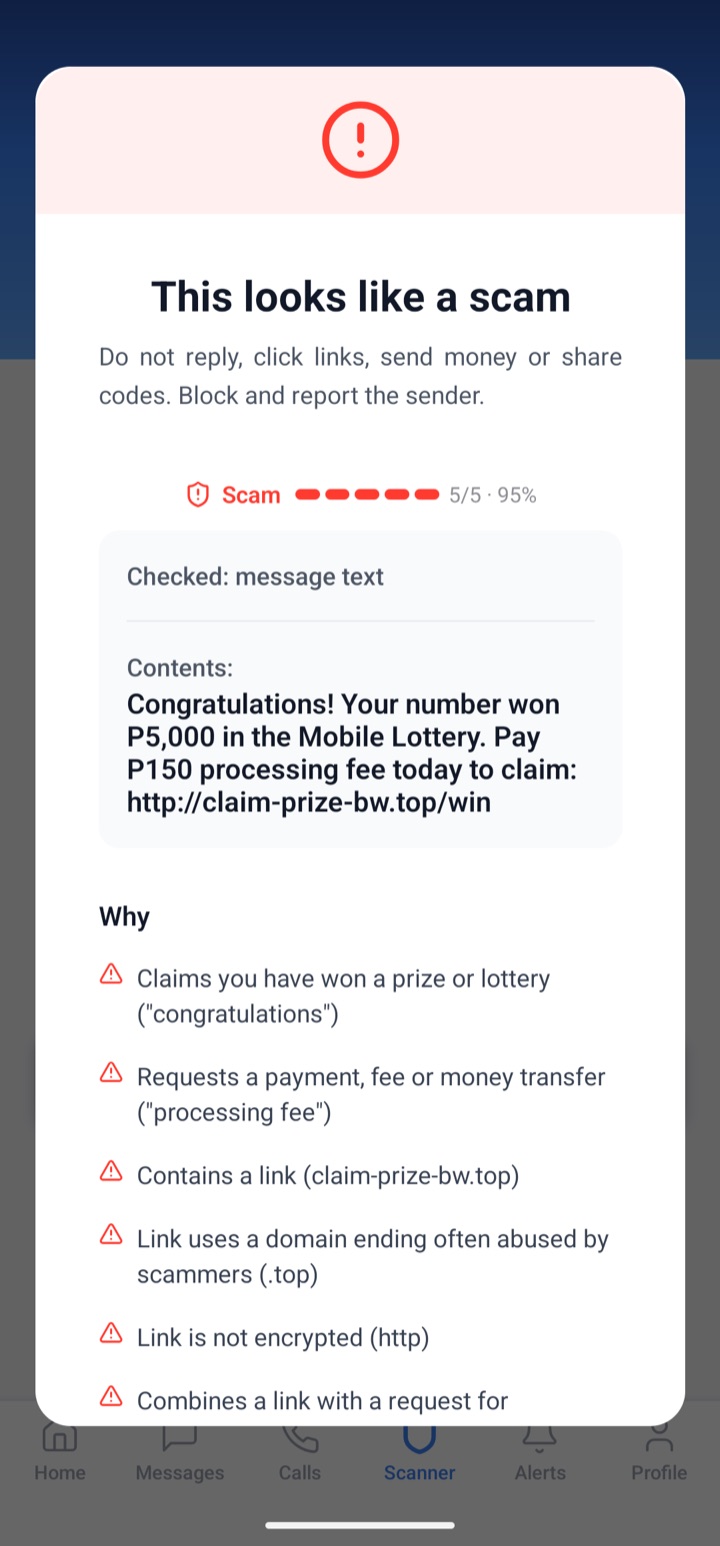
Every message and caller is checked as it arrives and given a rating from 1 (safe) to 5 (scam).
- The scan report lists the reasons: links that hide where they go, requests for PINs, passwords or money, prize and loan offers, and messages pretending to be a bank, mobile money or a government service.
- Numbers reported by other people raise the rating too.
- Each rating comes with advice on what to do next, such as not replying or not tapping a link.
A rating is guidance, not a guarantee. If in doubt, contact the organisation directly using a number you already trust.
- 04
Check something yourself with the Scanner
Received something suspicious through WhatsApp, email or social media? Check it in the Scanner tab before you act.
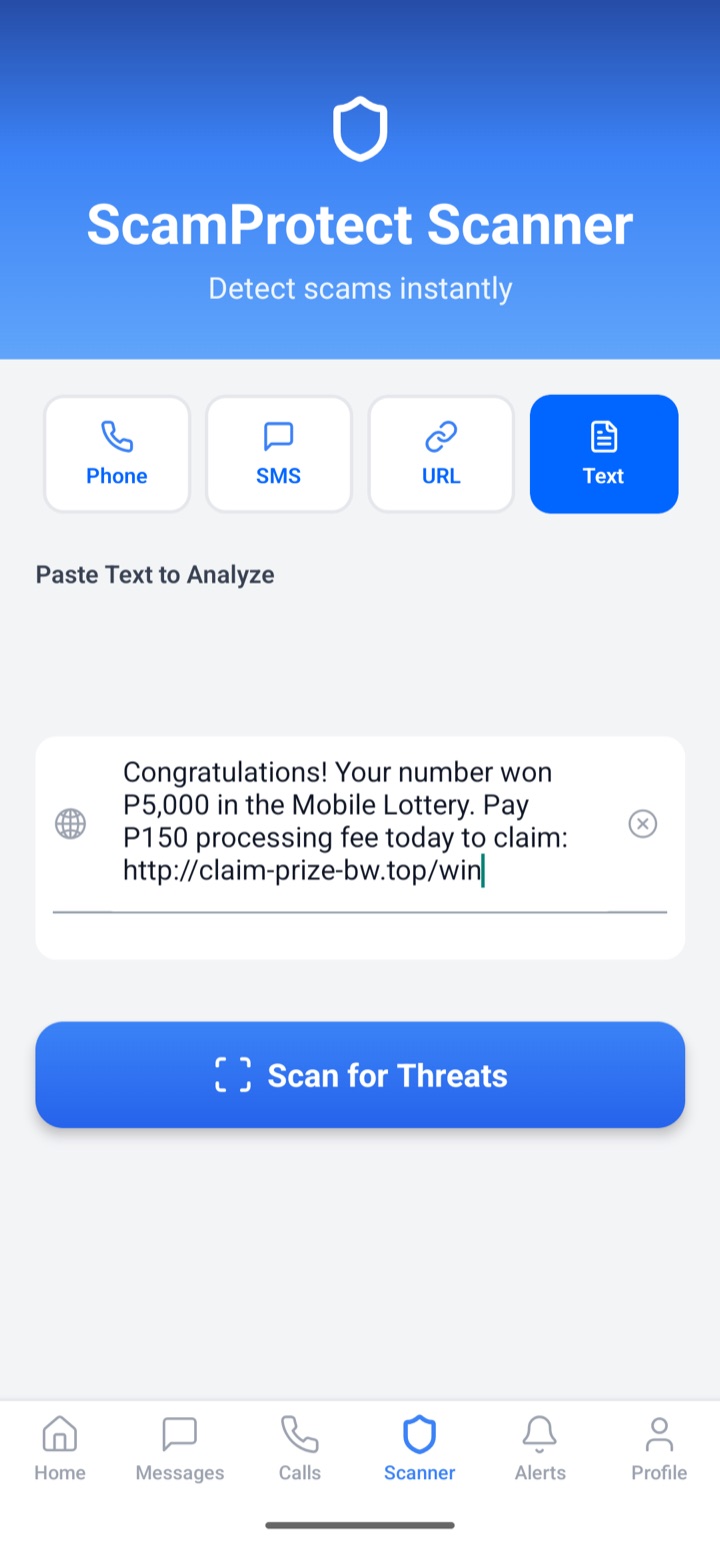
- Choose Phone, SMS, URL or Text, then paste the number, message or link.
- Tap Scan for Threats to see its rating and the reasons.
- Don't paste personal details such as your Omang or passport number, passwords or private links.
- 05
Get alerts when a scam arrives
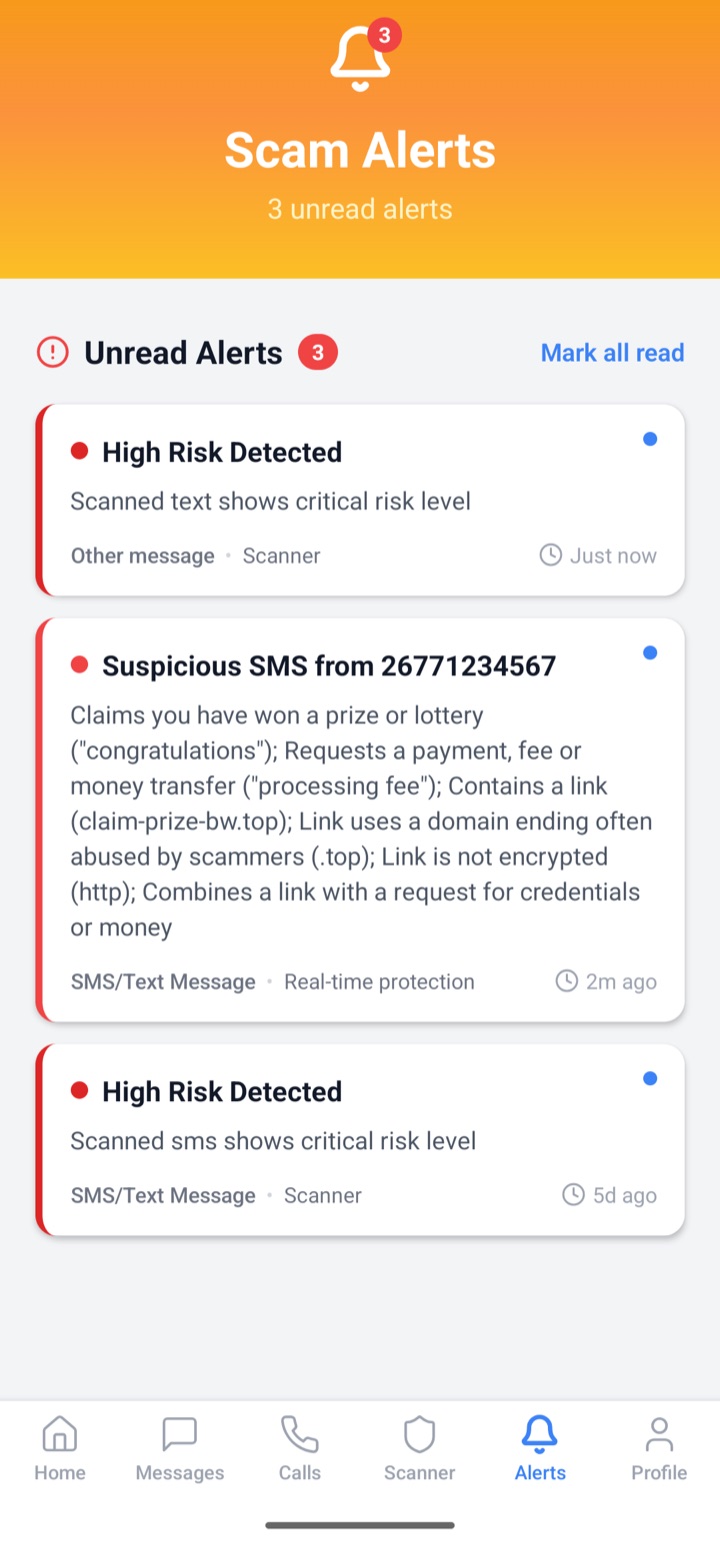
Real-time protection checks incoming messages in the background. When one looks like a scam, an alert explains why.
- Open the Alerts tab to see new and past alerts, and mark them as read.
- Without a connection, messages are checked with rules on your phone and marked "checked on this device". They are sent for a full check automatically when you're back online.
- 06
Block and report scammers
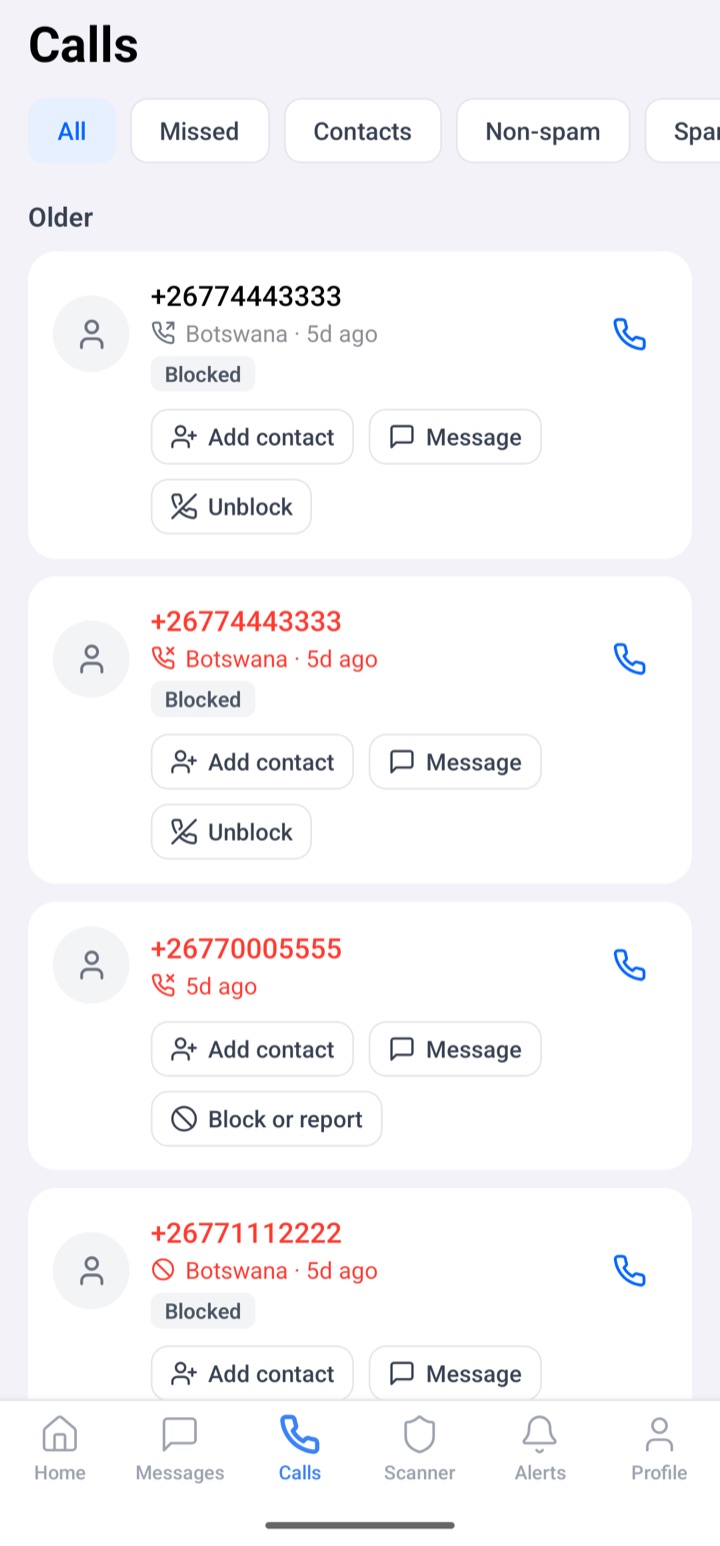
Block a number from its conversation, from the Calls tab (Block or report) or from a scan report.
- Turn on Auto-block to block senders rated as scams automatically.
- Calls from blocked numbers are rejected before they ring when ScamProtect screens your calls, and their messages arrive without a notification.
- Reporting a number as spam or a scam warns everyone else who uses ScamProtect. You can add what happened and evidence such as screenshots and links. Reports are shared without your name.
- Unblock a number in the same places, or in Profile.
More in the app
Emergency contacts
Add someone you trust in Profile so you can call them in one tap if you think you're being scammed.
Learn about scams
Tap Learn about scams on the home screen for short articles on how common scams work and how to spot them.
Protection report
See what ScamProtect caught over the last 30 days from the Profile tab.
Clear your history
Remove the ratings stored on your phone with Profile → Clear scan history.
Screenshots from ScamProtect for Android. The numbers and messages shown are test data.